




.png)

.png)

.png)



.jpg)




.png)
.png)




.png)

.png)

.jpg)
.png)

.png)
-(2).png)

.png)
.png)


.png)
-(2).png)


.png)


.png)
.png)

.png)
-(2).png)
.png)
.png)





.png)
.png)
.png)

-(1).png)
.jpg)
.png)


.png)





.png)
.jpg)
.png)
.png)
-(1).png)

.png)
-(1).png)
.png)
-(1).png)
.png)
.png)
.jpg)

.jpg)

.png)
.png)

.png)

-(1).png)
.jpg)
.png)
.png)
-2.png)

.png)
.png)
.png)



.png)

.png)



-2.png)


.png)
.png)
.jpg)
.png)
.png)

.png)


.png)


-(1).png)

.png)
-(1).png)

.png)

.png)

Make the most of IT
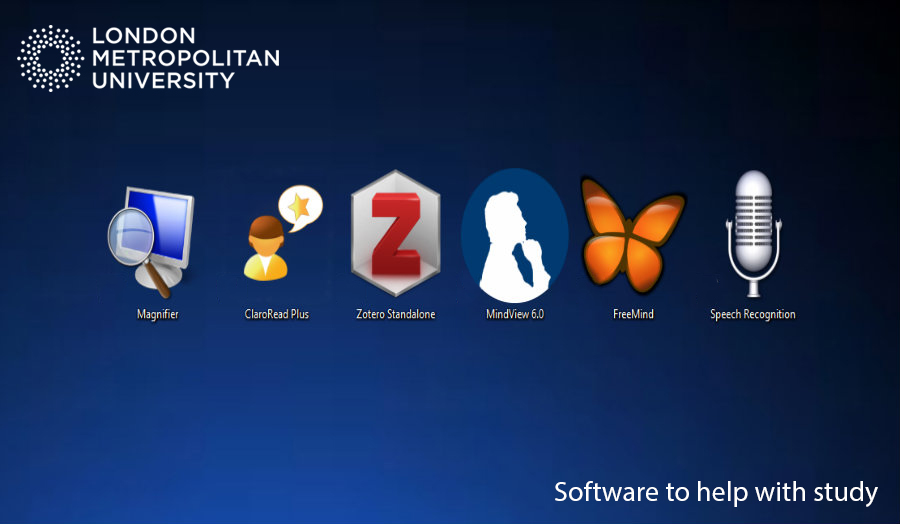
Assistive software can help with to access learning materials and complete assignments. All students may benefit from such support and we encourage you to make the most of the IT available to you.
This page looks at the software available on London Met computers, software often provided by the Disabled Students' Allowance and freely available assistive software.
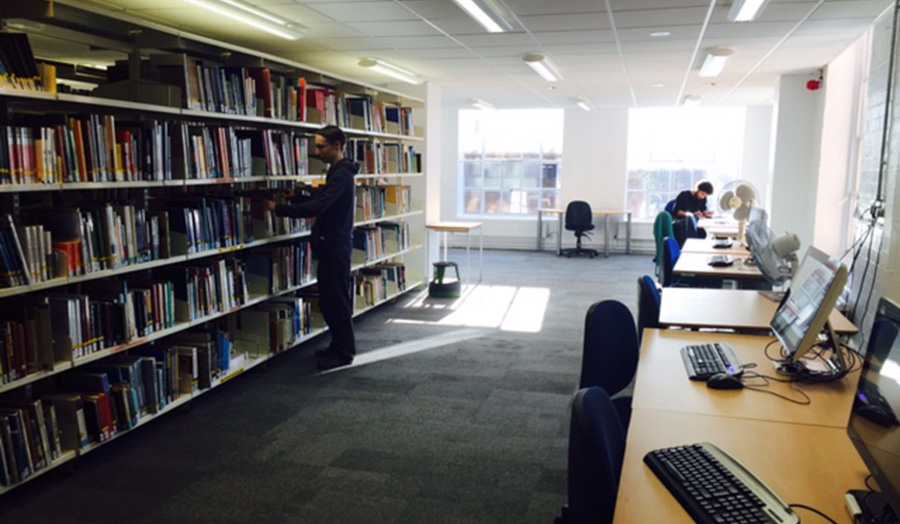
Assistive software on London Met computers
Computers for student use at London Met have a range of assistive software. London Met is not able to provide copies of the software below for personal use. However, the Disabled Students' Allowance (DSA) may provide copies of these and other software as part of a DSA support package.
Inspiration
Inspiration is a visual planning / mapping software tool, allowing you to create visual diagrams to assist with planning and organising your work. This can then be exported into Microsoft Office or Adobe for use when completing assignments. Inspiration can be found on the programme list from the start menu or by typing 'Inspiration' into the search bar next to the Windows Start icon. It is available on all London Met computers.
Zotero
You can find Zotero in the program list of all London Met computers or by typing 'Zotero' into the search bar next to the Windows Start icon.
Zotero collects your references and inserts them into your assignment. You can get help with Zotero from your Academic Liaison Librarian. You can download Zotero to your home laptop or computer from Zotero's website.
Don't forget to check the London Met referencing guidance for further information on referencing and to make sure your references and citations are correctly formatted.
Windows accessibility features
Windows has a range of built-in accessibility tools and features. These include:
- Narrator - a screen reader that will read onscreen information out loud.
- Magnifier - a tool that will magnify information on the screen.
- High Contrast - controls to make onscreen information easier to see.
- Speech Recognition - use your voice to enter text into the computer.
- Keyboard - tools to help with keyboard use (including an on-screen keyboard).
- Color Filters - make onscreen information easier to see / read.
- Mouse - tools to make the mouse easier to see and use.
- Text cursor - tools to make the text cursor easier to see and use.
To use Windows accessibility tools:
- Type 'Ease of access settings' into the Windows search tool (next to the Windows Start Button).
Here you will find a range of tools to make computer use easier.
Software provided by the Disabled Students' Allowance (DSA)
The DSA can provide students with copies of assistive software for personal use, and also funding for training to use the software. See below for examples of software often recommend:
Dragon Naturally Speaking
Dragon is a speech-to-text software. It recognises your speech and types for you. You could use speech-to-text software if you find putting ideas into writing difficult, your typing speed is slow or you find typing difficult. Produce your written assignments quickly and confidently and let Dragon tackle spelling.
Glean
Do you find your notes don't capture all the information from your lecture? Many students use lecture recordings for full and accurate lecture notes which better support their assignments and revision. Glean combines your lecture recording with presentation slides and your own notes and pictures.
Read&Write Gold
This is another text-to-speech software tool that is similar to ClaroRead. It highlights text as it reads out aloud and has many other features that can form part of your study skills strategies.
Using AI to support your learning
While some Artificial Intelligence (AI) software can be used to aid your learning and remove disability-related barriers to learning e.g. Grammarly, its use should be with caution to ensure that Academic Misconduct is not carried out. We recommend that you read the University Guidance on the use of AI and contact the relevant support teams prior to using AI to assist your learning.
Organisation: free and low-cost apps / software
Good organisation can help you keep on track with your studies. It can can also make it easier to find information and resources quickly. There are a number of free or low cost tools that can be used to help with organisation:
- Alarmy - Set challenges to make sure you wake up on time (iPad and iPhone)
- Microsoft To Do - Create to do lists easily (multi-platform App)
- Google Drive - Easily access your work anywhere (multi-platform App)
- Google Calendar - Stay organised and set reminders (multi-platform App)
- OneDrive - Easily access your work anywhere (multi-platform App)
- Outlook Calendar- Stay organised and set reminders (multi-platform App)
Staying focused: free and low-cost apps / software
Staying focused can help with productivity. Minimising distractions can also help you to maintain organisation in information. There are a number of free or low cost tools that can be used to help with focus:
- Noisli - Block out sounds and listen to soothing noises (multi-platform App)
- Focus Keeper - Set a timer to stay focused on your work (Apple Store)
Reading: free and low-cost apps / software
Tools to help with reading can help you to draw meaning more easily and more efficiently. There are a number of free or low cost tools that can be used to help with reading:
- Microsoft Lens - Take high-quality photos of your books and board (Apple and Google Play Store)
- Cam Scanner - Turn your phone into a scanner (multi-platform App)
- Natural Reader - Listen to your text being read out loud (online and Google Chrome App)
Writing: free and low-cost apps / software
Tools to help with writing can help you to record information and ideas more easily. Writing tools can also help you to spot any mistakes. There are a number of free or low cost tools that can be used to help with writing:
- Evernote - Make effective notes easily (multi-platform App)
- Microsoft OneNote - Make notes and write assignments (multi-platform App - including Apple Store / Google Play Store). Login using your University username and password.
- Mindly - Create mind maps (multi-platform App)
- Ginger - Spell checking and proofreading (multi-platform App)
- Grammarly - Check the grammar and spelling of your work (multi-platform App)
- Speechnotes - Turn your voice into text (Web App and Google Play Store)
Referencing: free and low-cost apps / software
Referencing is an important part of academic writing. Zotero can provide support for referencing.
- Zotero - Collect, organise and cite references (multi-platform App)
Revision: free and low-cost apps / software
Use time management and organisation tools to plan your revision. Apps and software can help with the revision process.
- Quizlet - Quiz to revise (multi-platform App)
- Goconqr - An integrated suite of content creation tools for each step of the learning journey (multi-platform App)
Links to more apps, guides and IT resources
See the websites below for a range of other IT resources to help you get the most from the technology available to you:
- AbilityNet Free IT support at home - Free support to help you get the most from your technology. 1-2-1 Advice and Information line: 0800 269 545
- AbilityNet Technology Factsheets - Free factsheets providing advice and information about how computers and other digital technologies can help people with a range of conditions / disabilities.
- My Computer My Way - An AbilityNet Guide - Help to make your device easier to use.
- DnA App Guide - An introduction to useful apps, freeware and Open Source Software Strategies.
- DnA Apps and software library.
Health and wellbeing apps
There are many health and wellbeing tools. For more informaiton see the examples below.
- NHS A to Z of Health - Information about health.
- NHS App - Get advice on your health (Apple and Google store).
- Pharmacy2U - Order your prescriptions online from home.
- Fabulous Google Play Store App - Set your own self-care goals and get healthy.
- SAM - Understand and manage anxiety.
- Kooth - Online Chat Support - Free, safe and anonymous online support for young people.
- MindShift Google Play Store App - Strategies to cope with anxiety.
- Clear Fear Apple Store App - Manage anxiety.
- Wysa Apple Store App - Talk remotely to someone about your Mental Health.
- eQuoo - Adventure games designed by psychologists to help you increase your emotional fitness and teach you new psychological skills.
- Woebot App - Self-care advice (multi-platform App).
- My Sugr - Check and monitor your sugar intake and diabetes on your phone (multi-platform App).
- My Diabetes My Way App - Monitor your diabetes on your phone (Apple Store)
Additional guidance
The DDS has also produced a range of additional guidance to assist students with using accessibility featues built within their PC's and Microsoft Office.
- Closed Captions in PowerPoint
- Closed Captions in MS Teams
- Reading Emails Aloud - Immersive Reader
- Reading Emails Aloud - ClaroRead Extension
Further information can also be found on our Get Tech Go Webpage.